Quickly Booked App Support
Quickly Booked App also offers SMS notifications, enabling you to send text messages to both your customers and employees to keep them updated about their appointments. You can review previous SMS records and adjust preferences in the SMS settings, which can be found in a separate section within the Settings page, similar to Email Notifications.
Unlike email notifications, SMS messages come with a cost. On the free plan, you’ll need to purchase all credits, whereas paid plans include a certain number of SMS credits that you can top up if additional ones are needed.
Please note that 1 SMS Credit does not necessarily equate to 1 SMS Message. The cost of each message sent is typically less than 1 SMS Credit per Message. For instance, if the price of one segment is $0.01125 and you purchase $10 credit, you can send approximately 888 segments.
It’s important to remember that a single message can consist of multiple segments, depending on the number of characters used in the message and the presence of special characters. A regular segment (in Latin) consists of 160 characters. If you compose a long message, it will be split into multiple segments and charged per segment. Using special characters or emojis will convert the message to Unicode, reducing the number of characters to 70.
For specific details regarding SMS pricing in your country, please reach out to our support team through the website support beacon or via the in-app chat.
How to purchase SMS credits?
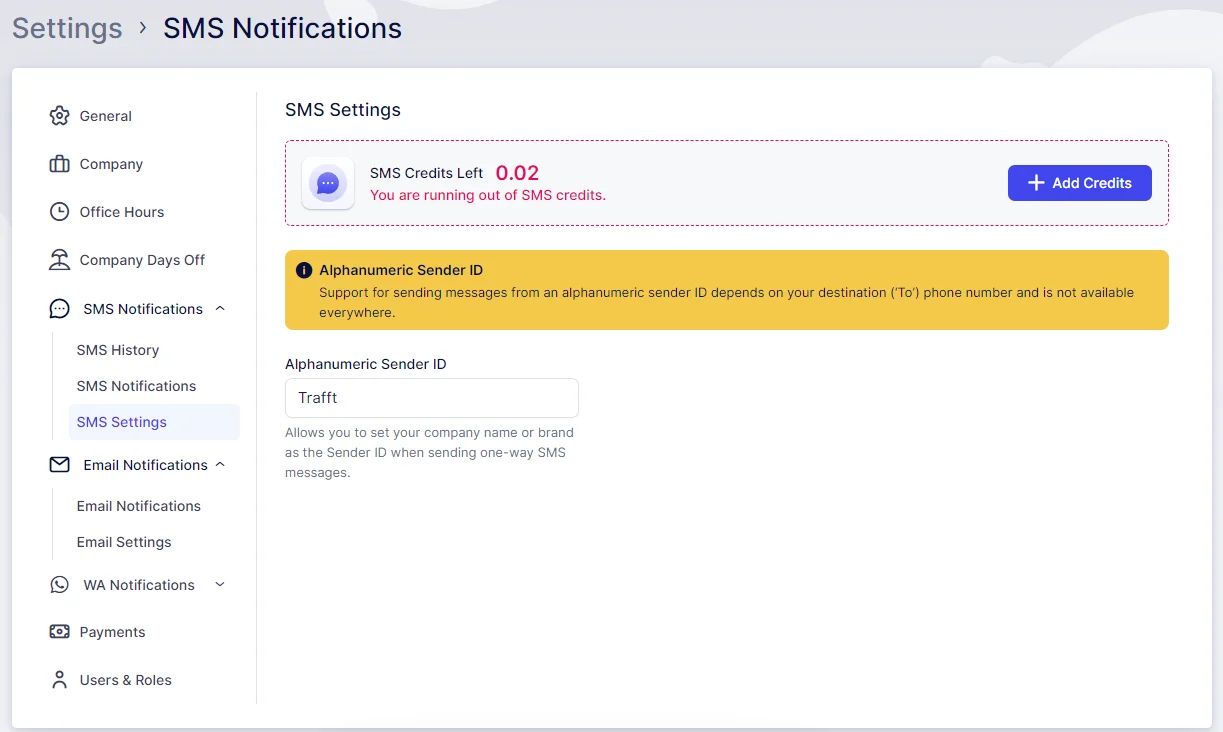
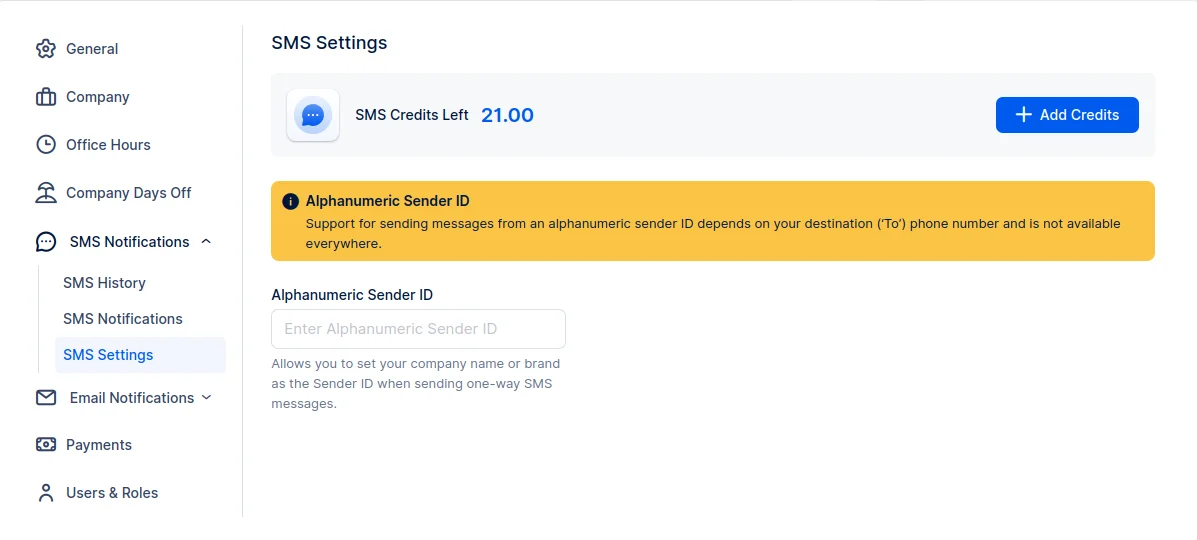
To purchase SMS credits, navigate to Settings > SMS Notifications > SMS Settings and click on the Add Credits button in the upper right corner
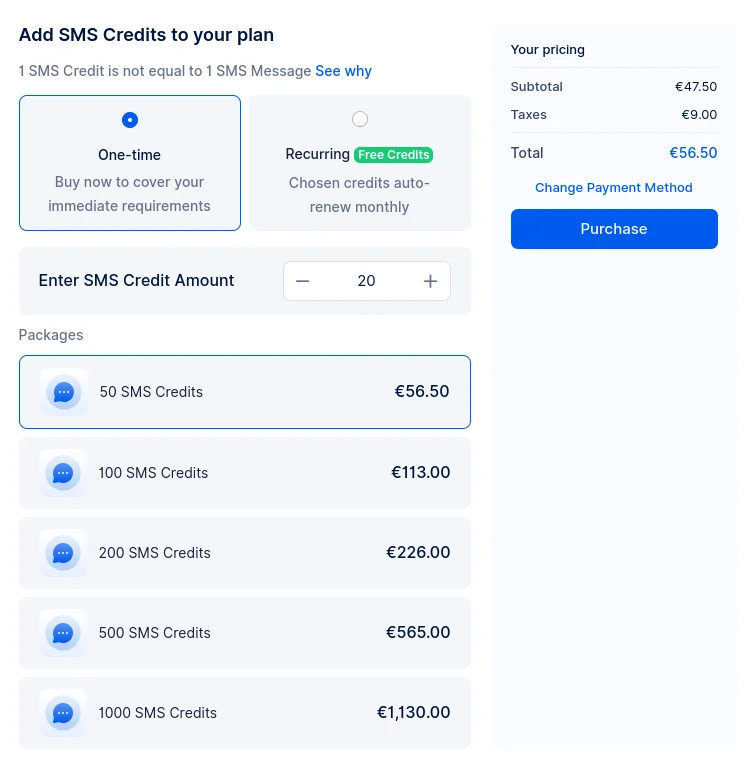
One-time purchase
One-time payment allows you to purchase credits at your own pace.
Recurring SMS purchase
This option lets you subscribe to an SMS plan that automatically recharges your credits every month. Each plan includes monthly bonus credits, with higher plans offering more bonuses. Choose the plan that fits your business needs and enjoy a seamless way to stay connected with your clients while maximizing value through added bonuses!
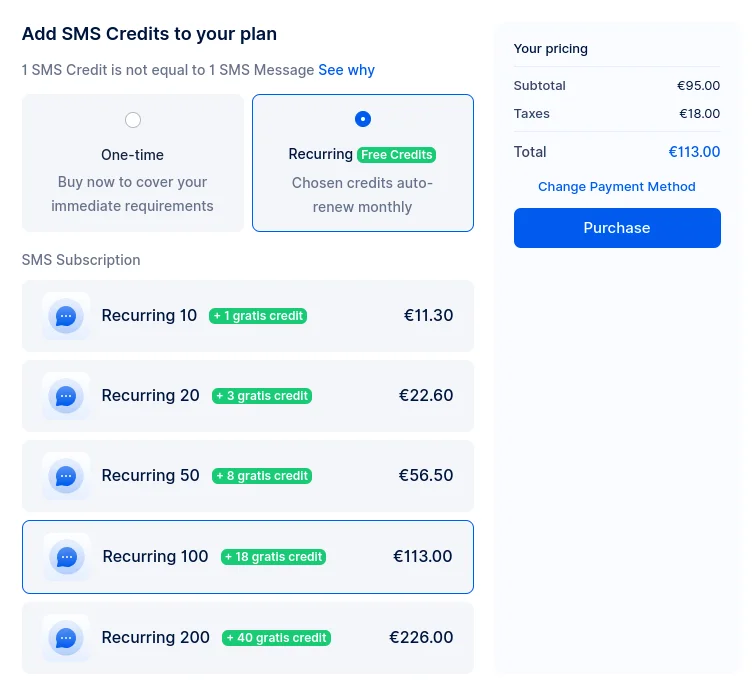
In the example above, we have selected 100 SMS credits per month. As a bonus, we will receive additional 18 SMS credits each month.
In case of choosing Recurring SMS credit purchase, the invoice will be generate and it can be found under Billing > Payment History
SMS options
To access SMS Notifications, navigate to Settings in the bottom left corner of your admin section and then click on “SMS Notifications”. You will be presented with three options:
- SMS History
- SMS Notifications
- SMS Settings
SMS History
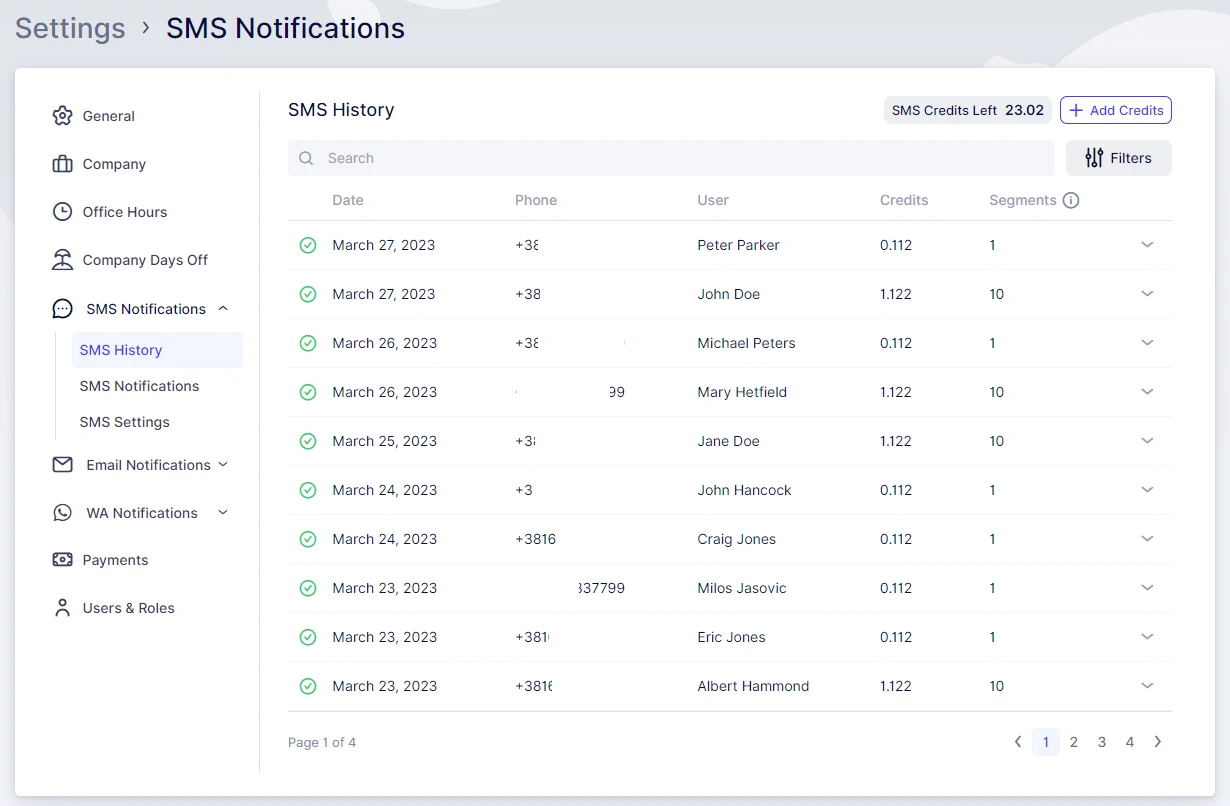
The SMS History tab within Quickly Booked App offers a comprehensive summary of all the messages you’ve sent. It presents the date of each message, the recipient’s name and phone number, the credit utilized for sending the message, and the number of segments into which the message was divided. The segmentation, as mentioned before, is influenced by the quantity and type of characters included in the message. Furthermore, you have the option to view the message content by clicking on the dropdown arrow. As usual, you can filter and search through your message history and check the remaining SMS credits.
SMS Notifications
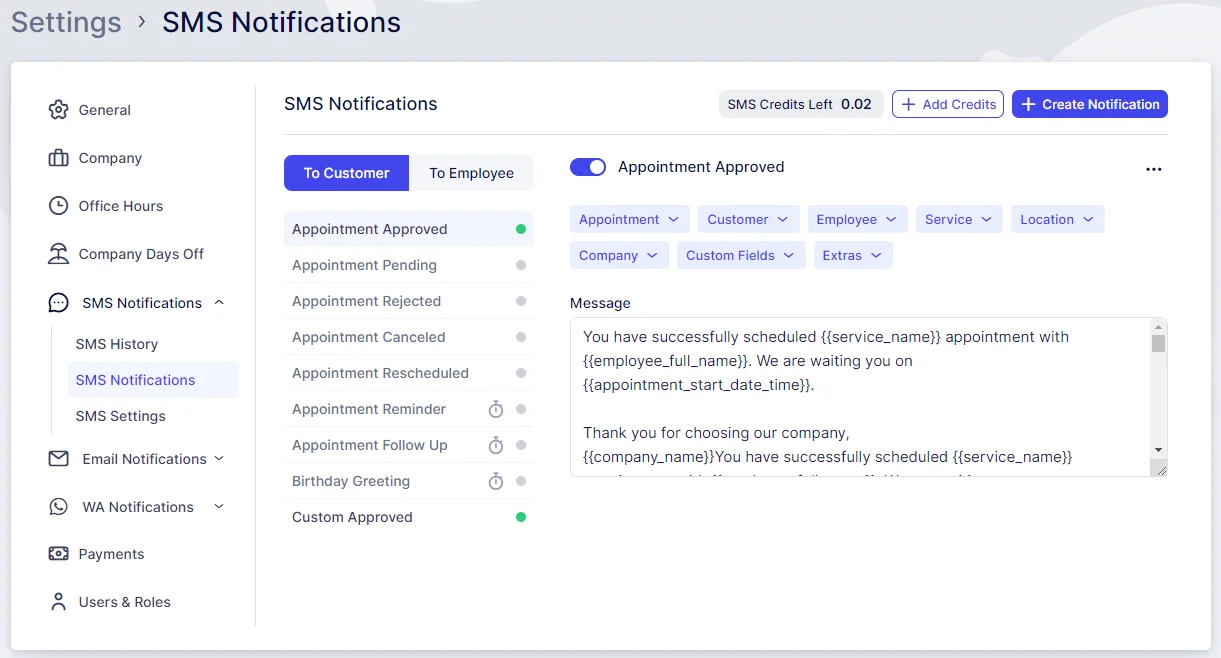
The SMS Notifications tab closely mirrors the Email Notifications tab, allowing you to customize various message types for both Customers and Employees. You can incorporate different placeholders to tailor your message content and determine the timing of your scheduled notifications.
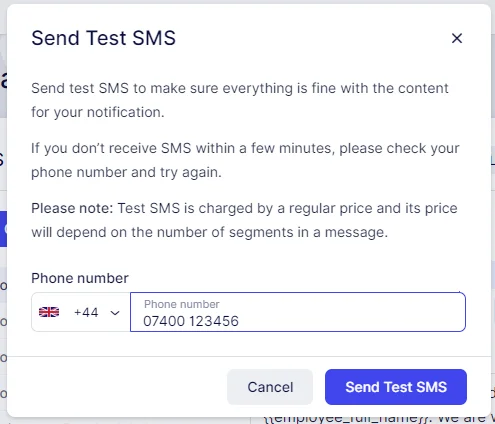
These notifications can be dispatched immediately following a specific action, at a scheduled time before or after an appointment, or at a designated time of day. There is also the “Send Test SMS” option, requiring only the entry of a designated number to receive a test notification. To access this option, click on the three-dots menu in the upper right corner of any SMS template -> “Send Test SMS”.
SMS Settings
In this section, similar to all preceding sections, you have visibility of your SMS Credit and the option to add New Credit as necessary. Additionally, there’s an opportunity to customize your “Alphanumeric Sender ID” contingent on the destination (‘To’) phone number, though this feature is not available in all countries.
This allows you to designate your company name, your name, or any preferred name to be displayed as the sender when recipients receive messages. In instances where setting a custom sender ID is not feasible for your desired destinations, an automatic ID will be appended to your messages.