Quickly Booked App Support
The Users and Roles page facilitates efficient management of your Quickly Booked App account, enabling the creation of various capabilities based on designated roles. Within this section, you can view a list of your current users along with their assigned roles. Currently, Quickly Booked App supports three role types: Superadmin, Admin, and Employee.
The Superadmin role is automatically assigned to the user who signs up for the Quickly Booked App account and creates all associated employees. As a Superadmin, you gain access to comprehensive features, including viewing all bookings, customer details, and employee information, as well as accessing settings and pages related to finance. The dashboard provides an overview of your business’s overall statistics.
The other two roles, Admin or Employee, can be assigned to any employees created by the Super admin on the Users page, with the default assignment being the Employee role. Enabling login for users with the Employee role allows them to access their Quickly Booked App profile on the back-end, where they can view only their assigned appointments through the Appointments List and Calendar view. Additionally, they can manage personal information, change passwords, and connect to Zoom, Google, or Outlook Calendar, depending on the configured integration.
Similarly, enabling login for users with the Admin role grants access to all Quickly Booked App back-end pages, excluding information related to Quickly Booked App plans and billing.
Please Note: Superadmin users are not deletable, and individuals cannot remove themselves from the Users page.
The Users and Roles page is located within the Settings section. When accessed, you will encounter two columns: the User column displaying the user’s full name and the Role column showcasing the assigned role of each user.
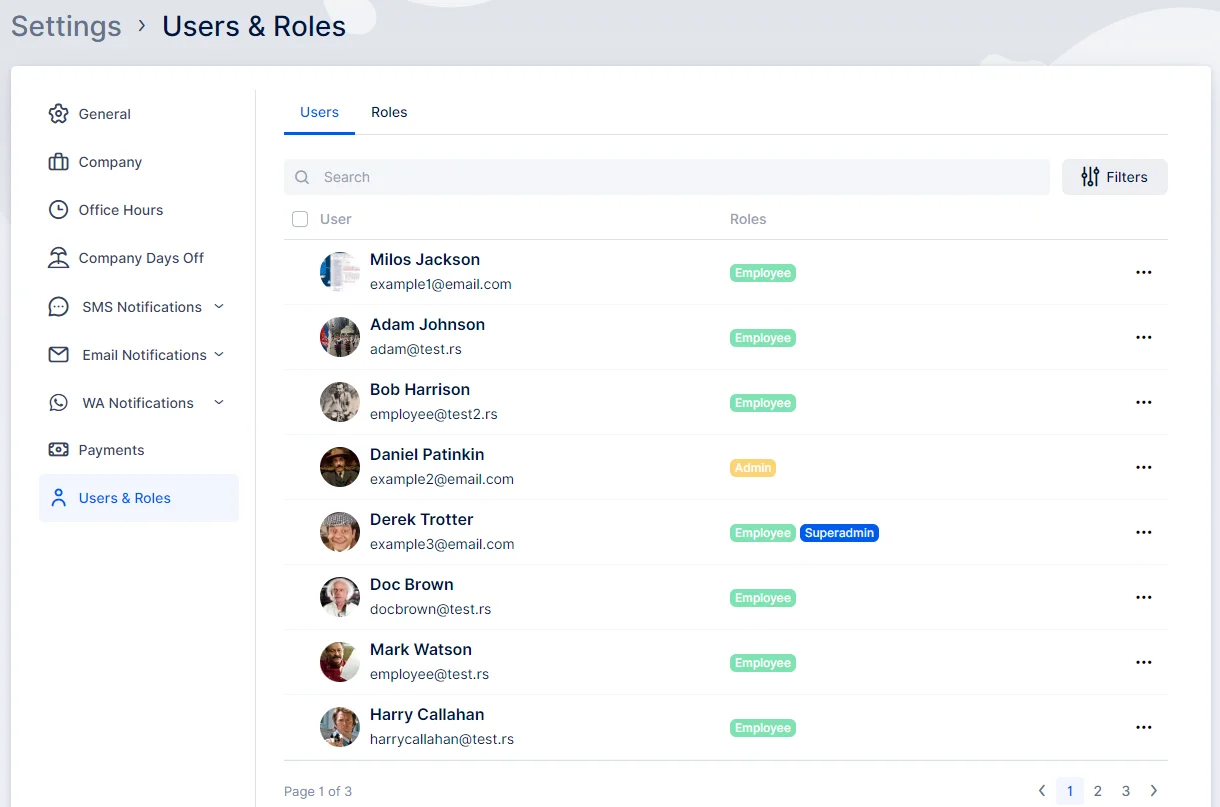
Within the Users and Roles page, you have the ability to add new users by clicking on the “+Add User” button. You can filter users based on their roles, and search for users by their names. For efficient bulk deletion, you can use the checkbox below the search field, which selects all existing users and allows you to delete them.
Beside each user, you will find a three-dots ( … ) option. Clicking on it provides choices to edit, delete the user, or enable login/reset the password.
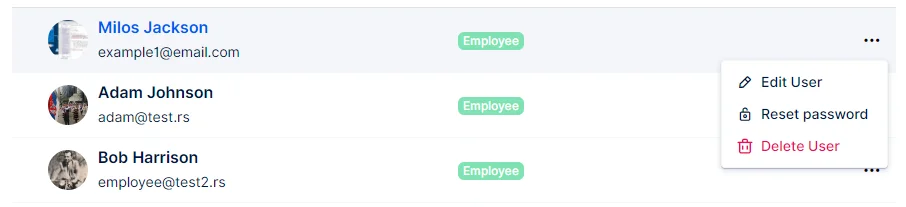
- The “Edit User” option enables you to modify the user’s first and last name, and email, and assign a different role. If you activate the “This user is available for booking” option within the edit user modal, the user becomes available for appointment bookings through Quickly Booked App.
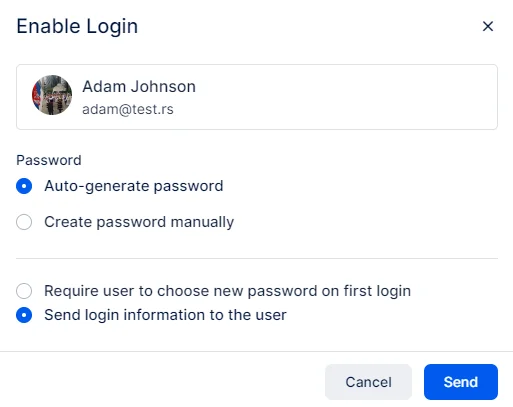
- The “Enable Login” option allows the super administrator to send and set up the password for employees’ initial account registration. Here, you can opt to send an auto-generated password by selecting “Auto-generated password” or manually create the desired password by choosing the “Create password manually” option. Additionally, you have the choice of automatically sending the login information to the user via email with the “Send login information to the user” option. Alternatively, you can allow the user to set up their own password during their initial login by choosing the “Require user to choose a new password on first login” option, which automatically disables all other options.
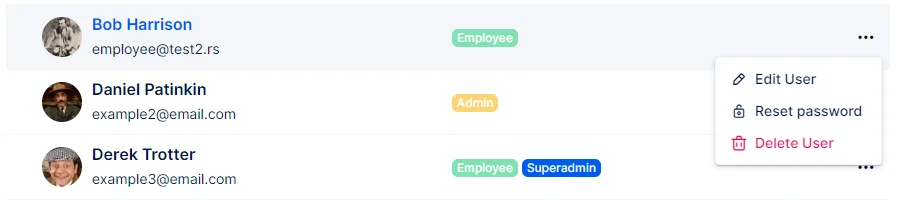
- If the user is already using their profile, the “Enable Login” option transforms into the “Reset Password” option, allowing you to reset the password in the same manner as if you were setting it up for the first time.
In addition to the three predefined roles in your Quickly Booked App account, you can configure a custom feature called Custom Roles. This feature enables you to create your own roles and determine the specific permissions you want to assign to them.